Type
New user on a machine (with complex configuration : modules/aliases/...)? Or simply want you make sure you are executing the right command? Find out which executable is really hiding behind your command with the type utility! (Old-time users of the which command, you might want to upgrade to this amazing utility...)
What is a command name?
On a prevoius geek news, you may have noticed on the following scheme that a command name can represent multiple things:
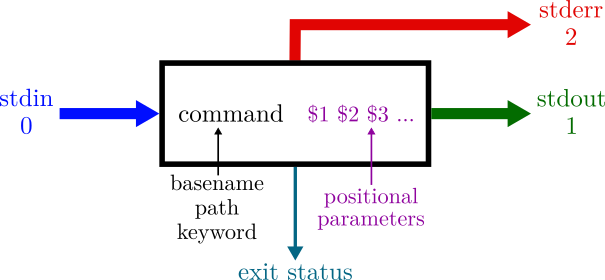
A command name can represent (non-exhaustive list...):
- A shell builtin or keyword: a Bash internal command (if you are using Bash)
- A function defined in your shell, like the functions defined in your
.bashrc(for example:steeandrhistorydefined in previous geek news...) - An alias, like
hgrepdefined in the first geek news - A path to an executable, like
./my_script.shor/opt/g09/cubegen - The basename of an executable in your PATH directories, like
rm,ls,vi,qsub, ...
Let us focus on this last case, and keep in mind that computer scientists are lazy: writing full paths to executables is tedious. Besides, on conventional Linux installations, the vast majority of executables are located in the same directories. Therefore, the shell programmers decided to allow the user to only write the basename of an executable, instead of the full path, and the shell would try to find the corresponding executable inside a small set of directories that usually contain the vast majority of executables. This set of directories is stored in an environment parameter called PATH.
Example: when you write cat my_file the shell is looking for an executable named cat inside the directories defined in your PATH variable, find it, and replace the basename with the full path /bin/cat my_file before executing it.
Resolve your command
In order to know which executable is found with a given command, you can use the which command_name or the whereis command_name command, that will basically look for executables whose basename is command_name, inside your PATH directories. Unfortunately, those commands will not recognize an alias, function, keyword, builtin, ...
On the other hand, the type command will allow you to further investigate your commands. Simply type type command_name to find out if command_name is a function (like rhistory), a builtin (like echo), a keyword (like for), an alias (like hgrep), or the basename of an executable (in that case, it gives you the corresponding full path) on your machine.
If your command_name is multiply defined, type without options will give you the effective definition that will be used by your shell. To list all of them, use the -a option (e.g. type -a cd will give you two results if you have applied every geek news tricks...)
Bonus: hashed commands
When you first use a command, a lookup is performed on your PATH directories, which is costly. Therefore, the full path is stored in a hash table (i.e. "cached" in a way) for easier retrieving next time.
type detects such mecanism and prevents you if the command name is in this hash table (i.e. if the command is said to be hashed), as it can be problematic if your suddenly change the corresponding executable path...
You can list the hash table defined in your current shell session (and the associated number of calls), with the hash command.